|
Home > Validation > Drop Downs > Project Tasks Track Excel Project Tasks
|


Track Excel Project Tasks
I've used this system to track project tasks, when making major changes to Excel workbooks. It also works well when you're building new workbook, or a set of connected Excel files. Keep track of the tasks that you, your clients, and your co-workers need to do.
- Tip: To follow along, get the Excel Project Task Tracker workbook.
This task tracker could help you
- prepare a quote for an Excel project, if you're working for a client
- estimate time will be required, for internal projects.
- avoid missed deadlines, or tasks slipping through the cracks

Project Task List
For Excel projects that require more than a few simple changes, I like to use this Excel project task tracker. It's nothing too fancy – just a list of what needs to be done, broken into steps.
The project tasks are in a named Excel Table, with 12 columns. As you add tasks, the table will expand automatically, to include the new rows. Here are the first 6 columns in the Excel Project Task Tracker:
- ID - sequential numbers, to create a unique ID for each task
- File - name of the Excel workbook - use this if there are multiple Excel files in the project
- Sheet - name of the worksheet where changes will be made
- Task Type - use this if you need time estimates or reports by task type
- Task Desc - make this as detailed as necessary - Tip: break large tasks into smaller steps, and list them in separate rows
- Time Est - a rough estimate (in minutes) of how long each task will take

And here are the remaining 6 columns in the project task list:
- Task For - person the task is assigned to
- Date Done - date the task was completed
- Time Act - actual time (in minutes) to complete the task
- Notes / Questions - notes or questions about the task
- Q To - person who should answer the question
- Replies - replies to the questions

If needed, you could add more columns for project task information, such as:
- task due date
- reference number
- department
- manager name
Drop Down Lists
To make it easier to enter the task information, the project task list has data validation drop down lists in 4 of the columns -- File, Sheet, Task Type and Task For.
The source lists for those drop down lists are stored on a separate sheet, in named Excel Tables.

To see the steps in creating a named Excel Table, you can watch this short video.
Total Task Times
At the top of the task sheet, there are cells that summarize the estimated and actual task times. That gives you a quick overview, while you enter the tasks, or update them with actual times.
In the project task list, times are entered as minutes. The summary formulas sum all the times, then divide by 60, to show the results in hours
This formula in cell C1 calculates the total estimated hours:
- =SUM(tblTasks[Time Est Minutes])/60
This formula in cell H1, calculates the total actual hours:
- =SUM(tblTasks[Time Act Minutes])/60

Project Task Summaries
In the Project Task Tracker sample file, there are two pivot tables on the Summary sheet. These show a summary of the project task information that has been entered.
NOTE: Refresh the pivot tables after updating the Project Task list
The pivot tables show the estimated time and actual times, in minutes:
- time per employee
- time per Excel file
You could create more pivot table reports, to show the project task summaries that you need.
For example, add Task Type to the Row area, to show Task Type per Employee

To see the steps for setting up a pivot table, you can watch this short video.
Share Task List
I don't like setting up shared Excel workbooks, but I've found that it works well to upload a file to Microsoft's OneDrive site, and everyone can edit the task list there, using Excel Online.
After you upload the file, use the Share options, to send a link to all the people involved in the project.
- Tip: Save the link as a bookmark in your browser, so it's easy to get back to the file again.
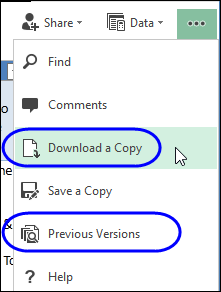
In OneDrive, you can download a copy of your project task file, after you make changes, to store as a local backup. Or, go back to look at previous versions of the file.
Get the Sample File
- Get the Excel Project Task Tracker workbook. The zipped file is in xlsx format, and does not contain any macros.
More Tutorials
Last updated: April 26, 2026 12:04 PM